

ServiceNow
ServiceNow is a cloud-based platform that automates daily business workflows. Originally designed for IT teams to manage help tickets and technical issues, it replaces slow manual tasks like emails and spreadsheets with streamlined digital processes. Today, it connects entire companies across departments like human resources, customer service, and security. By uniting these teams in one central system, ServiceNow makes everyday work-like onboarding a new hire or resolving a customer complaint-much faster and easier.
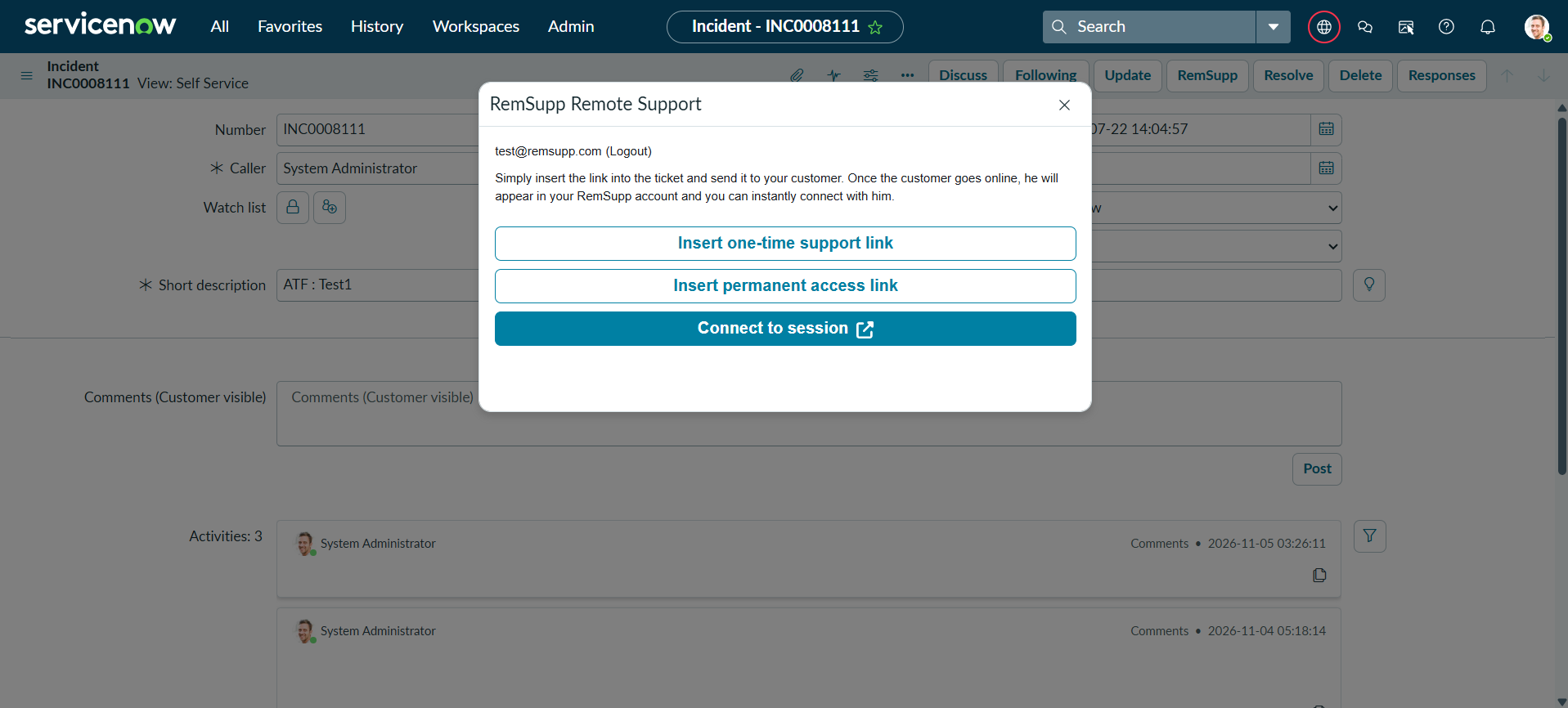
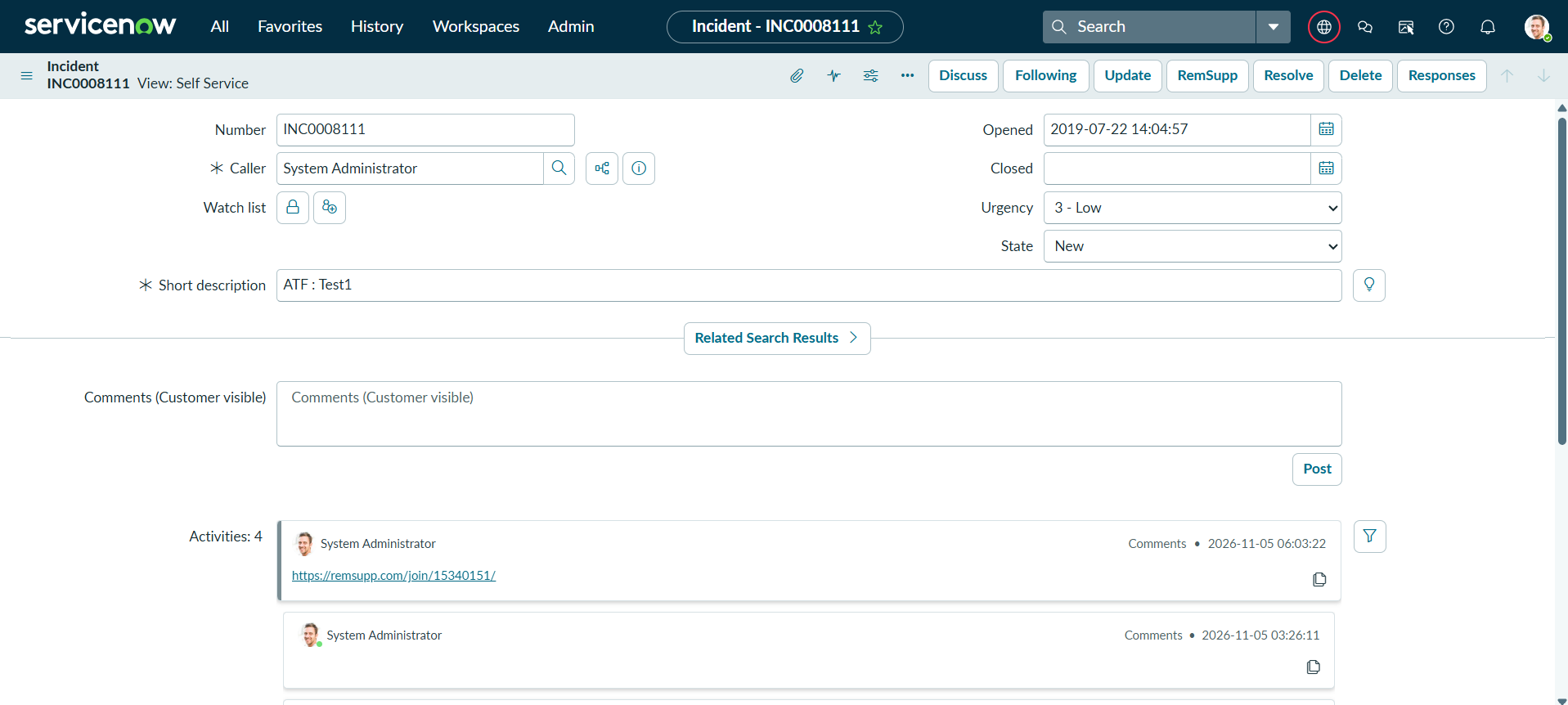
RemSupp remote support integration connects your ServiceNow workspace directly to a client's computer so agents can troubleshoot issues in real time. Rather than switching between separate applications or asking users to read out complex IDs, support staff can launch a secure remote desktop session straight from an active ServiceNow incident or service request.
Benefits of RemSupp integration
- One-click session invitations. Agents can generate a remote access link directly inside a ServiceNow ticket and send it to the user with a single click
- Instant screen control and file transfer. Once the user joins, technicians can take control of their mouse and keyboard
- Faster ticket resolution. Eliminating back-and-forth troubleshooting messages reduces communication friction and helps IT teams close incidents much faster
ServiceNow Integration Installation Guide
Follow these steps to import and activate the RemSupp integration on your ServiceNow instance. This process requires an administrator account.
- Download the integration package: First, click here to download integration (XML file).
- Upload to ServiceNow: Log in to your ServiceNow instance as an administrator. In the filter navigator on the left, type Retrieved Update Sets and click on it. At the bottom of the list, click the Import Update Set from XML link, select the downloaded file, and click Upload.
- Preview the update set: Locate the uploaded file in the Retrieved Update Sets list (it will be in the Loaded state) and click on its name to open it. Under the Related Links section at the bottom, click the Preview Update Set button and wait for the system validation to reach 100%.
- Commit and activate: Once the preview completes successfully with no critical errors, a new Commit Update Set button will appear under Related Links. Click it to finalize the installation and activate the remote support helper on your incident forms.
Verification Tip: Open any existing ticket under Incidents > Open. You will see a new button "RemSupp" on the top form header.
Start using RemSupp for free
Set up your first remote access in 2 minutes.
- Free plan
- Easy setup
- Secure connection
